Skip to main content
How Can We Help?
Turn Private Address off for a network
Private Address is turned on by default. For improved privacy, leave it on for all networks that support it.
iPhone, iPad, or iPod touch
- Open Settings, then tap Wi-Fi.
- Tap the information button
 next to a network.
- Tap to turn Private Address off. If your device joined the network without using a private address, a privacy warning explains why.
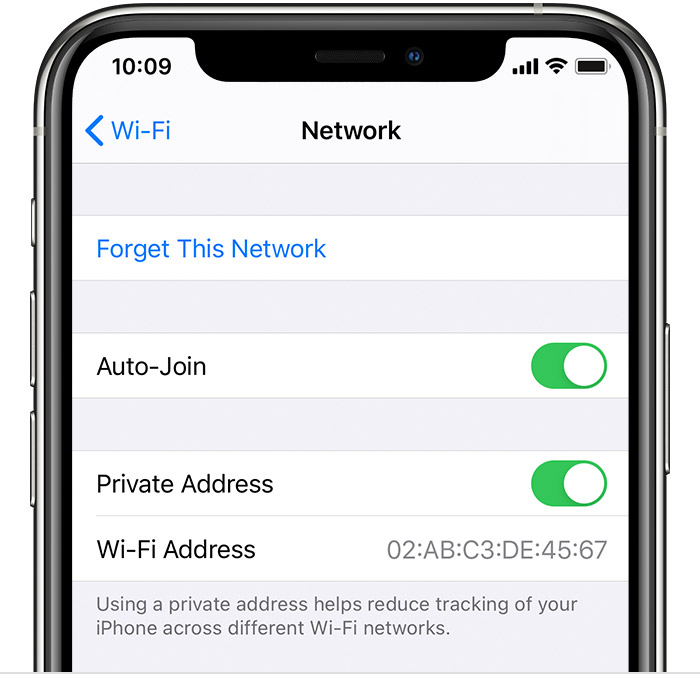
- After you turn off Private Address, write down the Wi-Fi address for future reference.
Apple Watch
- Open Settings, then tap Wi-Fi.
- Tap the name of the network you joined. If you haven’t joined the network yet, swipe left on its name and tap More.
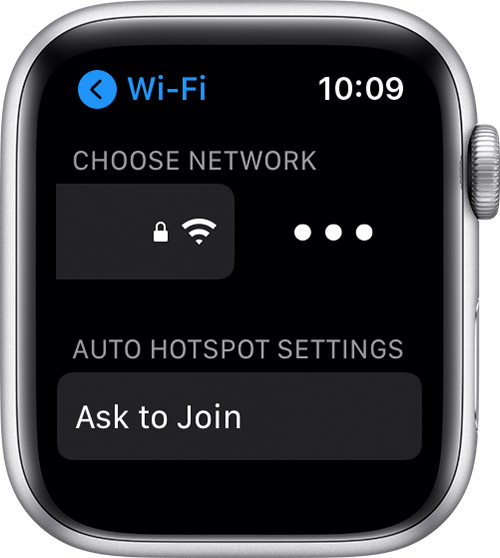
- Tap to turn Private Address off.
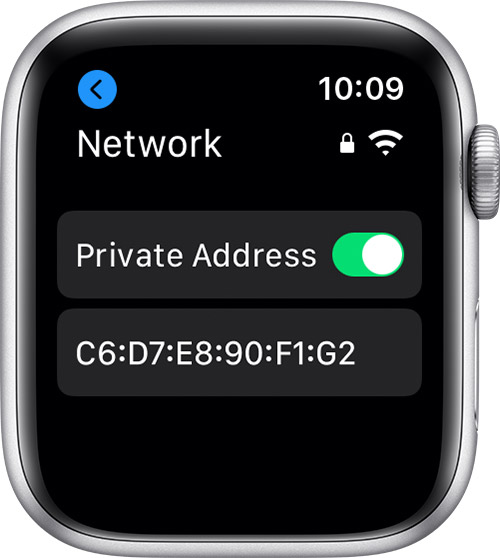
- After you turn off Private Address, write down the Wi-Fi address for future reference.